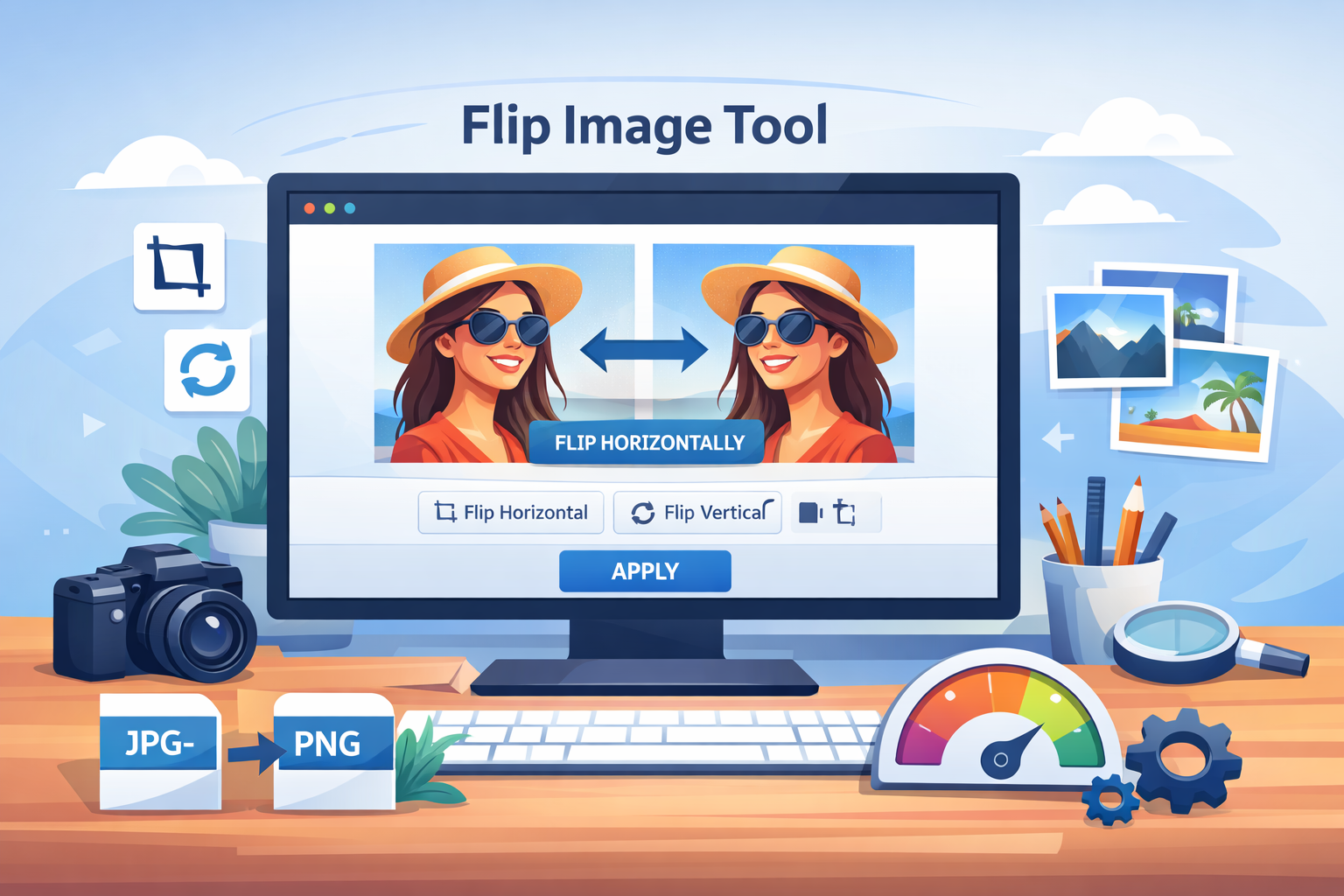
Flip Image Tool Online – Flip Images Horizontally in Seconds (Free & Easy)
Sometimes, a simple image adjustment can make a huge difference. Whether you're editing a photo for social media, correcting a mirrored selfie, or preparing graphics for a project, flipping an image horizontally is one of the most useful quick edits you can make. The good news? You don’t need heavy software like Photoshop anymore. A modern flip image tool lets you do this instantly online.
With the rise of browser-based tools, anyone can flip images in seconds—no downloads, no technical skills required. Whether you're a designer, developer, student, or casual user, this tool saves time and effort while maintaining image quality. In this guide, you'll learn everything about using a flip image tool effectively, along with tips, best practices, and common mistakes to avoid.
What is flip image tool
A flip image tool is an online utility that allows you to mirror or flip an image either horizontally or vertically. When you flip an image horizontally, it creates a mirror-like effect where the left and right sides are swapped.
This tool is commonly used for correcting camera angles, fixing mirrored text in selfies, or creating symmetrical designs. Unlike advanced editing software, a flip image tool is simple and fast—just upload, click, and download.
You can try tools like Image Flip Tool or use a full editor like Image Editor for more advanced adjustments.
Why it is important
Flipping images might seem like a small feature, but it plays an important role in many real-world scenarios. For example, if you take a selfie using your phone, the image often appears mirrored. A flip image tool helps correct that instantly.
Designers use flipping to create balanced compositions, while marketers use it to adjust visuals for better alignment in ads and social media posts. Developers also use flipped images in UI design to create consistent layouts.
Additionally, flipping images can improve visual storytelling. Sometimes, simply changing the direction an object faces can make your design more engaging or natural.
Step-by-step guide
Using a flip image tool is incredibly easy. Here’s a simple step-by-step process:
1. Upload your image
Start by uploading your image from your device. Most tools support formats like JPG, PNG, and WebP.
2. Choose flip option
Select the “Flip Horizontally” option. Some tools also provide vertical flipping if needed.
3. Preview the result
Check the preview to make sure the image looks exactly how you want it.
4. Download the image
Once satisfied, download the flipped image instantly.
If you also need to adjust dimensions, you can use Image Resizer. For rotation tasks, check this guide: Rotate Image Online Free Tool.
Best tools to use
There are many tools available online, but here are some of the best options you can use:
- Image Flip Tool: Simple and fast for flipping images instantly.
- Image Editor: Great for combining flipping with other edits like cropping and filters.
- Image Crop Tool: Useful when you need to crop after flipping for better composition.
- Image Rotate Tool: Ideal if you also want to rotate images along with flipping.
For resizing workflows, this guide is helpful: Best Image Resizer Online Tools.
Tips and best practices
To get the best results when using a flip image tool, follow these practical tips:
- Check text direction: If your image contains text, flipping it will reverse the text. Make sure it still makes sense.
- Maintain image quality: Always download in the highest quality format available.
- Combine with other tools: After flipping, you may want to crop or resize your image for better results.
- Use for symmetry: Flipping can help create visually balanced designs, especially in banners and layouts.
- Preview before download: Always double-check the preview to avoid mistakes.
Common mistakes
Even though flipping images is simple, users often make a few common mistakes:
- Ignoring text reversal: Flipping images with text can make them unreadable.
- Over-editing: Combining too many edits can reduce image clarity.
- Using low-quality uploads: Starting with a low-resolution image results in poor output.
- Wrong orientation: Sometimes users choose horizontal flip instead of vertical (or vice versa).
Avoiding these mistakes ensures your final image looks clean and professional.
Conclusion
A flip image tool is one of the simplest yet most powerful tools you can use for quick image editing. Whether you're fixing a mirrored photo, improving design balance, or preparing visuals for digital platforms, flipping images can make a noticeable difference.
The best part is that modern tools make this process effortless. With just a few clicks, you can transform your images without needing advanced skills or expensive software. By following the tips and steps in this guide, you can use a flip image tool efficiently and get professional-quality results every time.