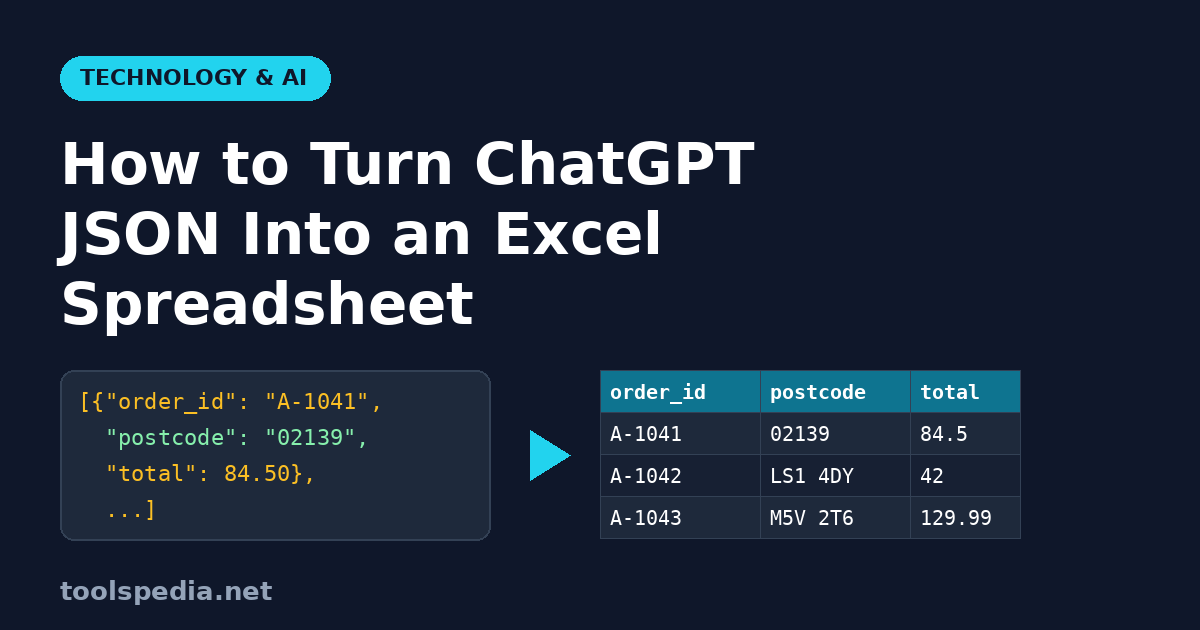
You asked ChatGPT, Claude or Gemini to pull order details out of a pile of emails, and it answered with a neat block of JSON. Now you need that data in Excel or Google Sheets, where your manager, your accountant or your pivot table can use it. Copying the JSON into a cell does nothing useful, and asking the chatbot to "just make it a table" often gives you something that looks right on screen but falls apart when pasted.
The reliable route is short: clean the JSON, check that it parses, convert it to CSV, and import the CSV in a way that does not let the spreadsheet mangle your data. This guide walks through that process with a real four-row example, shows the exact output, and covers the five problems that trip people up most often.
The short answer
- Copy only the JSON from the AI reply, without the
```jsonfence lines. - Paste it into the JSON Validator to confirm it parses.
- Paste the same text into the JSON to CSV converter, choose comma or semicolon, and download
output.csv. - In Excel use Data, then From Text/CSV (or in Google Sheets use File, then Import) instead of double-clicking the file, so you can keep postcodes and IDs as text.
Everything below explains why each step matters.
A worked example: four orders from four countries
Say you pasted four customer emails into a chatbot and asked it to return the orders as a JSON array. A typical, well-behaved answer looks like this:
[
  {"order_id": "A-1041", "customer": "Dana Whitfield", "city": "Boston", "postcode": "02139", "country": "US", "total": 84.50, "currency": "USD", "notes": "Gift wrap"},
  {"order_id": "A-1042", "customer": "Oliver Price", "city": "Leeds", "postcode": "LS1 4DY", "country": "UK", "total": 42.00, "currency": "GBP"},
  {"order_id": "A-1043", "customer": "Chen, Mei", "city": "Toronto", "postcode": "M5V 2T6", "country": "CA", "total": 129.99, "currency": "CAD", "notes": "Leave at \"side door\""},
  {"order_id": "A-1044", "customer": "Liam O'Brien", "city": "Melbourne", "postcode": "3000", "country": "AU", "total": 61.25, "currency": "AUD", "notes": ""}
]
Notice the details that make this realistic: a US ZIP code with a leading zero, a UK and a Canadian postcode with spaces, a customer name containing a comma, a note containing double quotes, and one order (the UK one) with no notes key at all.
We ran that exact text through the same conversion code the Toolspedia converter uses in your browser. With the comma delimiter and the header row switched on, it reports 4 rows and 8 columns and produces:
order_id,customer,city,postcode,country,total,currency,notes
A-1041,Dana Whitfield,Boston,02139,US,84.5,USD,Gift wrap
A-1042,Oliver Price,Leeds,LS1 4DY,UK,42,GBP,
A-1043,"Chen, Mei",Toronto,M5V 2T6,CA,129.99,CAD,"Leave at ""side door"""
A-1044,Liam O'Brien,Melbourne,3000,AU,61.25,AUD,
Three things happened automatically, and they are exactly the things people get wrong when they build CSV by hand or ask a chatbot to write it:
- The comma in "Chen, Mei" is protected. The value is wrapped in double quotes, so the spreadsheet keeps it in one cell instead of splitting it into two columns.
- Embedded quotes are doubled.
"side door"becomes""side door""inside a quoted field, which is the standard CSV escape. - The missing key becomes an empty cell. The converter collects every key found in any row to build the header, so Oliver's order simply gets a blank
notescell rather than shifting his data left.
One thing also changed that you might not expect: 84.50 became 84.5 and 42.00 became 42. In JSON those are numbers, and a number has no trailing zeros once it is parsed. The value is identical; just format the column as currency (two decimal places) in your spreadsheet. If you need the text exactly as written, ask the AI to put prices in quotes.
Problem 1: the code fence breaks the JSON
Chat apps usually wrap JSON in a Markdown code block. If your copy grabs the fence lines too, the text starts with three backticks and no JSON parser will accept it. Running a fenced snippet through the parser gives an error like Unexpected token '`'. The fix is to delete the ```json line at the top and the ``` line at the bottom, or use the copy button on the code block, which copies only the contents.
The same Markdown leakage is behind stray asterisks and pound signs when you paste chatbot text into documents; we covered that in why ChatGPT text has asterisks when pasted.
Problem 2: almost-JSON that a parser rejects
Language models write JSON from patterns, not from a parser, so small syntax slips happen, especially in long outputs. The slips we see most:
| Slip | Example | Fix |
|---|---|---|
| Trailing comma | [{"a":1},] | Delete the comma before ] or } |
| Curly "smart" quotes | {“a”:1} | Replace with straight " quotes |
| Cut-off output | Array ends mid-object, no closing ] | Ask the AI to continue, or request fewer rows per reply |
| Comments or explanations inside | // total in USD | Remove them; JSON has no comments |
Paste the text into the JSON Validator before converting. It runs the browser's own JSON.parse, shows "Valid JSON" with the root type and a pretty-printed copy when it works, and otherwise shows the parser's error message, plus a line number when the browser reports a character position. That pinpoints the trailing comma or smart quote in seconds, much faster than scanning a 200-row array by eye. It is the same habit we recommend for testing a regex from ChatGPT before using it: let a real parser check the AI's work.
Problem 3: nested objects turn into [object Object]
This is the limit you most need to know about. If the AI groups fields into a sub-object, like this:
{"order_id": "A-1041", ..., "ship_to": {"city": "Boston", "postcode": "02139"}}the converter does not flatten it. It turns the whole sub-object into text, and in the output that column reads [object Object] for every row. We tested the first two orders in nested form: the result had 7 columns instead of 8, and the ship_to column contained nothing useful. Arrays inside a row behave a little better (a list of strings becomes the items joined by commas in one cell) but are still awkward to analyse.
The easiest fix happens at the source. Add a line like this to your prompt:
Return a JSON array of flat objects. Every value must be a string or a number. Do not nest objects or arrays. Use the same keys in every object. Keep postcodes, ZIP codes, phone numbers and IDs as strings.If you already have nested JSON, you can ask the chatbot to flatten it ("rename ship_to.city to ship_city"), or use one of the alternatives in the comparison below.
Problem 4: Excel strips leading zeros from ZIP codes
The CSV above correctly contains 02139. But if you double-click output.csv, Excel guesses column types and turns Boston's ZIP code into 2139. The same happens to UK phone numbers starting with 0, long order numbers (Excel shows anything over 15 digits in scientific notation and loses precision), and codes that look like dates.
Avoid the guessing by importing instead of opening:
- Excel (Windows and Mac, Microsoft 365): Data, then From Text/CSV, select the file, then choose Transform Data and set the postcode and ID columns to Text before loading.
- Google Sheets: File, then Import, upload the CSV, and untick "Convert text to numbers, dates, and formulas".
Problem 5: one column, or garbled accents (UK and Europe)
Excel reads CSV using your computer's regional list separator. In the US, UK, Canada and Australia that is a comma. In Germany, France, Spain, Italy, the Netherlands and much of Europe, where the comma is the decimal separator, Excel expects a semicolon. Open a comma file on a German laptop and every row lands in column A.
The converter has a Semicolon option for exactly this case. With it, our example comes out as A-1043;Chen, Mei;Toronto;M5V 2T6;CA;129.99;CAD;...; note that "Chen, Mei" no longer needs quotes, because the comma is no longer the separator. Prices stay as 129.99 with a full stop, so in a European locale you may still need to set the decimal separator during import.
Accents are the other European headache. The downloaded file is plain UTF-8 without a byte-order mark, and older Excel versions on Windows may then display "Zoë" or "£" as two odd characters. Microsoft's own advice is to bring the file in through Data, then From Text/CSV, where you can pick "65001: Unicode (UTF-8)" as the file origin. Google Sheets and Numbers read UTF-8 correctly without any extra step.
Is it safe to paste business data into an online converter?
Both Toolspedia tools used here run in your browser. The page code parses and converts the text with JavaScript on your device and builds the download locally; it does not send your JSON to a server. That matters if the data contains customer names and addresses, as in our example. Of course, the data already went through the AI chatbot to produce the JSON in the first place, so check your company's policy on that step too.
How this compares with other ways to do it
| Method | Good at | Watch out for |
|---|---|---|
| Ask the chatbot to output CSV directly | Quick for small, simple tables | Values with commas or quotes are often left unescaped; long tables get cut off |
| Ask the chatbot to create a downloadable file | No copying at all, where the app supports file output | Not available on every plan or app; the file still needs the same checks |
| Excel Power Query (Get Data, From File, From JSON) | Expands nested objects into columns | Needs a saved .json file and more clicks; desktop Excel only |
Python with pandas (json_normalize) | Large files, deep nesting, repeatable jobs | Requires Python and some coding |
| Browser converter (validate, then convert) | Flat JSON in seconds, correct escaping, no install | Does not flatten nested objects |
For the common case, a chatbot extracting a few dozen flat records, the browser route is the fastest and least error-prone. For nested API responses or recurring reports, Power Query or pandas is worth the setup.
A checklist you can reuse
- Prompt for a flat JSON array with identical keys and IDs stored as strings.
- Copy the contents of the code block, not the fence lines.
- Validate it; fix any trailing commas, smart quotes or cut-off endings.
- Convert it with the JSON to CSV tool, using comma for US, UK, Canadian and Australian Excel and semicolon for most of continental Europe.
- Import (do not double-click) and set postcode, phone and ID columns to Text.
- Spot-check the row count: the converter tells you how many rows and columns it produced, so compare that with the number of records you asked for.
That last check is the one people skip, and it is the quickest way to catch a reply that silently dropped records halfway through.