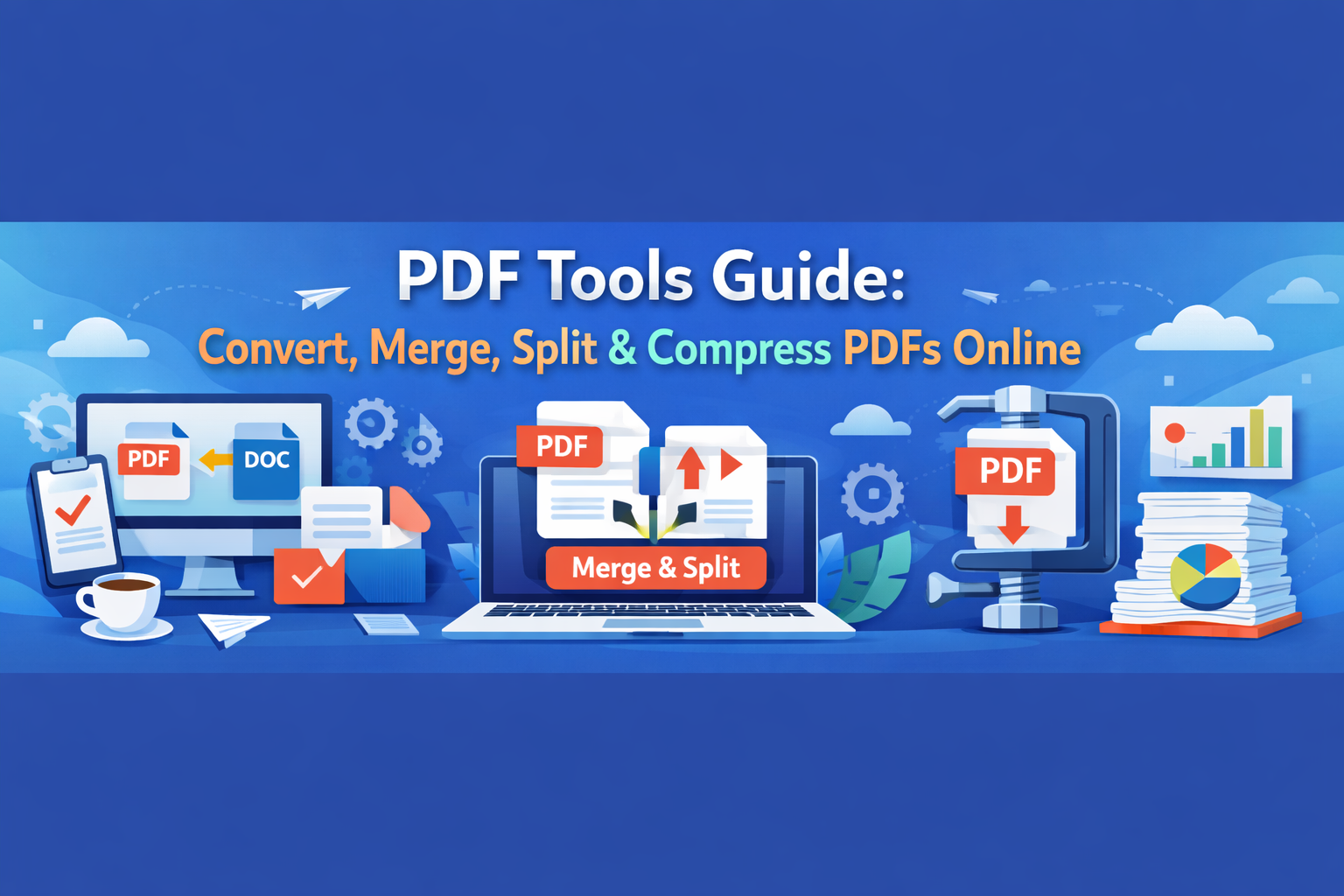
PDF Tools Guide: Convert, Merge, Split and Compress PDFs Online
PDF files are everywhere—from business documents and invoices to resumes and eBooks. But managing PDFs can sometimes feel frustrating, especially when you need to edit, merge, or reduce file size quickly. That’s where online PDF tools come in.
In this guide, you’ll learn how to convert, merge, split, and compress PDFs online using simple tools. Whether you're a student, freelancer, or business owner, mastering these tasks will save you time and improve productivity. The best part? You don’t need expensive software—free tools can handle almost everything.
What is PDF Tools Guide: Convert, Merge, Split and Compress PDFs Online
This guide covers essential operations you can perform on PDF files using online tools. These include converting files to and from PDF, merging multiple documents into one, splitting large PDFs into smaller parts, and compressing files for faster sharing.
Instead of installing heavy software, modern web-based tools allow you to perform these actions directly in your browser. This makes the process faster, more accessible, and user-friendly.
Why it is important
Efficient PDF management is crucial for both personal and professional use. Large files can slow down websites and email transfers, while poorly organized documents can create confusion.
For example, if you're running a website, optimizing PDFs is just as important as optimizing images. You can learn more about performance improvements in this guide: Image Optimization Guide: How to Speed Up Your Website.
Additionally, properly structured documents can improve SEO when PDFs are indexed by search engines.
Step-by-step guide
1. Convert files to PDF
Use tools like Word to PDF or JPG to PDF to convert your documents into a universal format.
2. Merge multiple PDFs
If you have several documents, combine them using PDF Merger. This is useful for reports, contracts, or portfolios.
3. Split large PDFs
Large files can be difficult to manage. Use PDF Splitter to divide them into smaller sections.
4. Compress PDFs
To reduce file size, use PDF Compressor. This improves upload speed and saves storage.
5. Edit PDF content
Make quick changes using PDF Editor without needing advanced software.
Best tools to use
Here are some of the most useful tools available on Toolspedia:
- PDF Merger – Combine multiple PDFs easily
- PDF Splitter – Break large files into smaller parts
- PDF Compressor – Reduce file size quickly
- PDF Editor – Edit text and structure
- PDF to Word – Convert PDFs into editable documents
If you're building a full content workflow, you may also find this helpful: How to Use a Word Counter Tool for Better Content Writing.
Tips and best practices
- Always compress PDFs before uploading to your website
- Use clear file names for better organization and SEO
- Keep file sizes under control for faster loading
- Combine related documents instead of sending multiple files
- Use high-quality compression to maintain readability
Following these practices ensures better performance, user experience, and even improved search rankings.
Common mistakes
- Uploading large PDFs without compression
- Using scanned PDFs that are not searchable
- Not optimizing file names or metadata
- Splitting files incorrectly, causing missing content
- Over-compressing files, reducing quality
Avoiding these mistakes will help you maintain professional and user-friendly documents.
Conclusion
Managing PDFs doesn’t have to be complicated. With the right tools, you can convert, merge, split, and compress files in just a few clicks. These small optimizations can make a big difference in productivity, website speed, and user experience.
Whether you're handling documents for work, school, or your website, mastering these tools will give you a clear advantage in 2026 and beyond.