Extract Colors from Image Online – Best Color Picker from Image Tool
Choosing the right colors is one of the most important parts of design. Whether you're building a website, designing a logo, or creating social media content, colors define how your audience feels about your work. But what if you find the perfect color in an image and want to use it in your project? This is where a color picker from image tool becomes incredibly useful.
Instead of guessing colors manually, you can upload an image and instantly extract exact color values like HEX, RGB, or HSL. This saves time and ensures accuracy. In this guide, you'll learn how to extract colors from images online, why it matters, and which tools can help you do it easily.
What is color picker from image
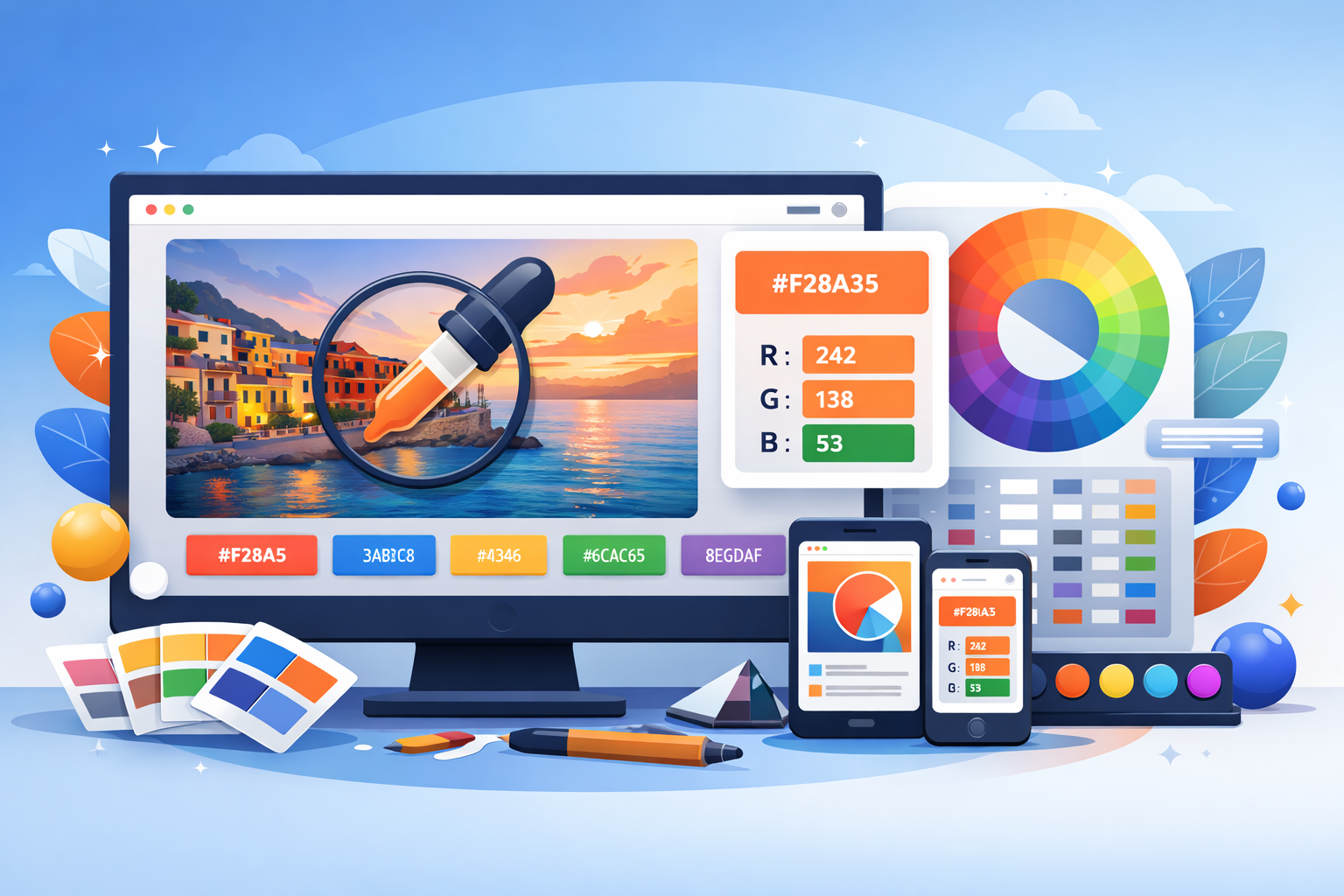
A color picker from image is an online tool that allows you to upload an image and select any color from it. Once selected, the tool provides the exact color code, such as HEX (#ffffff), RGB (255,255,255), or other formats.
This is especially helpful when you want to replicate a color from a photo, screenshot, logo, or design inspiration. Instead of approximating colors, you get precise values that can be used in CSS, design software, or branding guidelines.
For example, if you see a beautiful blue shade in a banner, you can upload the image and click on that area to get the exact color code instantly.
Why it is important
Using a color picker from image is not just convenient—it is essential for maintaining consistency and professionalism in your work.
First, it ensures color accuracy. When you manually guess colors, you often end up with slightly different shades. Over time, this can make your design look inconsistent.
Second, it improves branding. If you are working with a brand, using exact colors is critical. A small variation can affect how people perceive the brand.
Third, it saves time. Instead of opening heavy design software, you can quickly extract colors online in seconds.
Lastly, it helps collaboration. When sharing color codes with developers or team members, having exact values avoids confusion.
Step-by-step guide
Using a color picker from image tool is very simple. Follow these steps:
Step 1: Open the image color picker tool on your browser.
Step 2: Upload your image from your device.
Step 3: Hover or click on any part of the image.
Step 4: Instantly view the color code (HEX, RGB, etc.).
Step 5: Copy the color code and use it in your project.
For example, if you're designing a website, you can paste the HEX code directly into your CSS file.
Best tools to use
There are many tools available, but here are some of the most useful ones on Toolspedia:
- Image Color Picker – Extract colors directly from images with precision.
- Color Code Converter – Convert between HEX, RGB, and other formats.
- Color Palette Generator – Create beautiful palettes from extracted colors.
- Random Color Generator – Discover new color ideas.
If you are new to design, you may also find this guide helpful: Color Theory for Web Design.
And if you're optimizing images for websites, check this: Image Optimization Guide.
Tips and best practices
To get the best results from a color picker tool, keep these tips in mind:
Always use high-quality images. Low-resolution images can produce inaccurate colors.
Zoom in before selecting colors. This helps you pick the exact pixel you want.
Extract multiple colors to build a palette. A single image can give you a complete color scheme.
Use consistent formats. Stick to HEX for web design and RGB for digital design.
Test colors on different screens. Sometimes colors appear differently depending on the display.
Common mistakes
Even though the tool is simple, people often make small mistakes:
One common mistake is selecting colors from compressed images. Compression can slightly change colors.
Another mistake is ignoring color contrast. Just because a color looks good in an image doesn't mean it will work well in your design.
Some users also forget to save their color codes, which leads to rework later.
Lastly, relying on a single color can make designs look flat. Always try to create a balanced palette.
Conclusion
A color picker from image is a simple yet powerful tool that can significantly improve your design workflow. Whether you are a beginner or a professional, it helps you extract accurate colors quickly and efficiently.
By using the right tools and following best practices, you can maintain consistency, enhance creativity, and save time. The next time you find a color you love in an image, you know exactly how to capture it.